Confluence ホワイトボードを作成および編集する
ホワイトボードは、Atlassian Government 環境では利用できません。
ホワイトボード
The whiteboard is one infinite canvas to explore your ideas. New whiteboards will have a dotted grid background, which you can change using the () More actions menu.
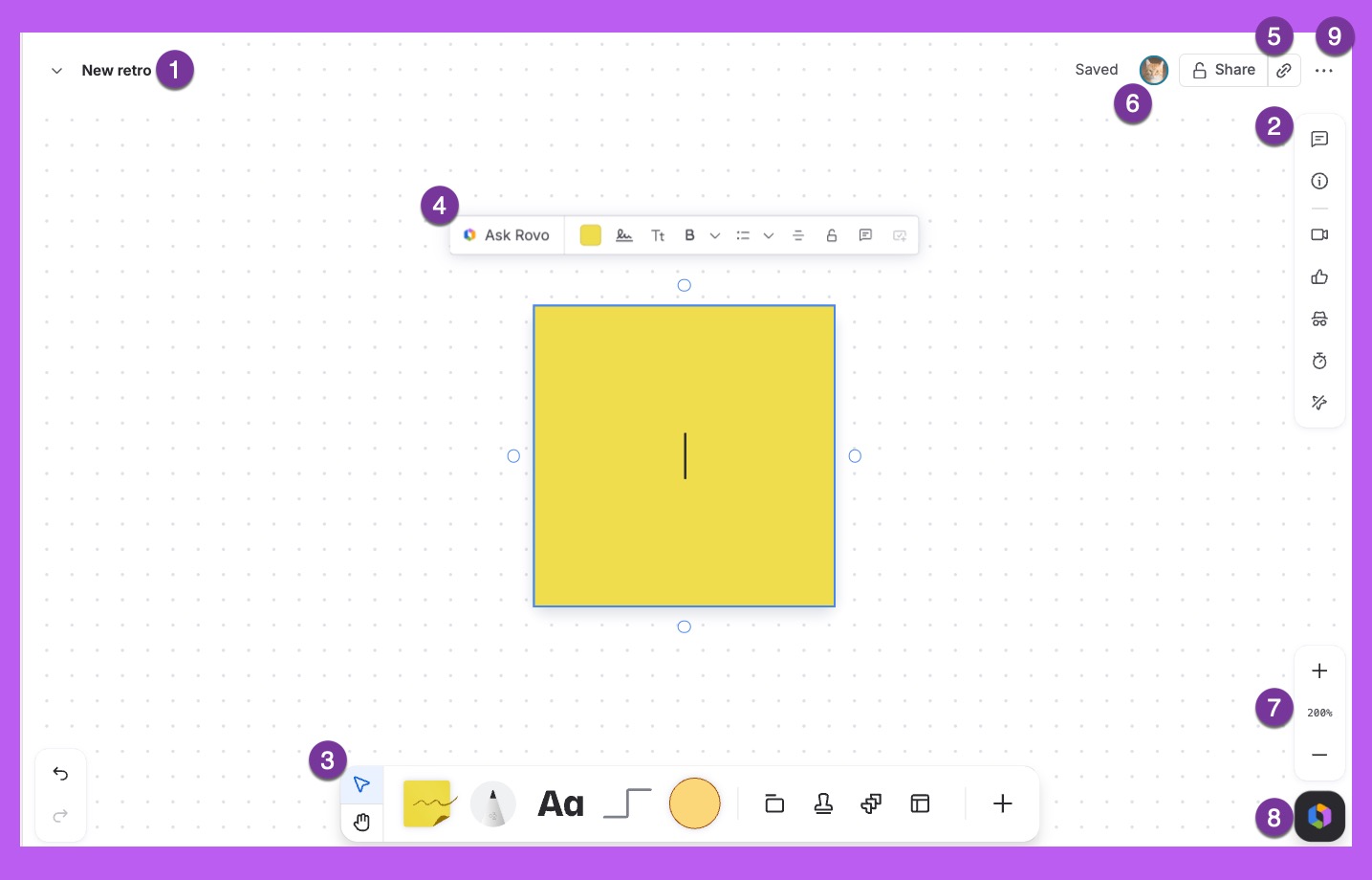
Select the drop-down arrow to see the whiteboard’s position in your space..
Use the toolbar controls to:
View and add comments
Open a panel with whiteboard details
Record a Loom video
Start a vote
Enter private mode
Start a timer
Hide everyone else’s cursor
Access whiteboard-specific tools such as sticky notes and stamps.
フローティング ツールバーを使用して編集と注釈付けを行います。
[共有] を選択して、ホワイトボードの共有ダイアログを開きます。人を招待したり、ホワイトボードへのリンクをコピーしたり、共有設定を更新したりできます。
あなたのボードで誰が共同作業をしているかを確認します。
ズームを使って表示設定を調整します。
Start a chat with Rovo to use AI features.
Open the () More actions menu.
ツールバー内の機能
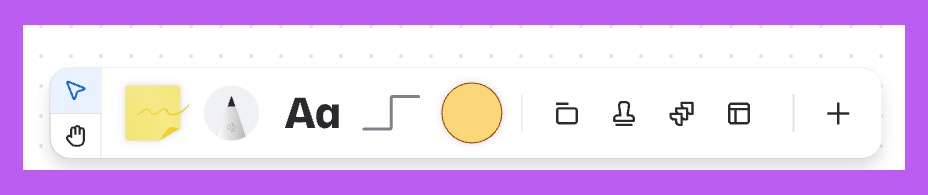
ナビゲーション ツールの機能
ナビゲーション ツールを使用すると、ホワイトボード上でパン、ズーム、移動などが可能です。ナビゲーションの詳細
カーソルを使ってオブジェクトを選択して移動します。
ハンドツールを使ってパンとズームを行います。
付箋の機能
ホワイトボードの付箋は、私たちが慣れ親しんでいる実際の付箋とまったく同じです。考えを書き留め、ホワイトボード上で動かしてアイデアやパターンを整理するために使用します。
紙の付箋との違いは、ホワイトボード付箋は、アイデアを膨らませるのに必要なだけ小さくても大きくてもかまわない点です。注意: 付箋にはテキストと絵文字しか含めることができません。付箋の詳細
付箋は次の用途に使用します。
ブレーンストーミング セッション
ふりかえり
「カードの並べ替え」演習のカード
カンバン ボード、To Do リスト、またはプロジェクト管理
頭から離したいことは何でも!
What is the pen tool?
Draw freeform in three sizes and your choice of color.
テキスト ツールの機能
テキスト ツールを使用して、タイトルと見出しを含む本文テキストのブロックを作成したり、簡単なアイデアを書き留めたりできます。テキストの詳細
ラインの機能
付箋、テキスト オブジェクト、図形の間にパスを作成するには、線を使用します。ホワイトボードを整理し、思考のフローを作成するのに役立ちます。
ホワイトボードには、次のものがあります。
直線
ダイナミック ライン
線はホワイトボード上のものをつなぐコネクタにもなります。線とコネクタの詳細
図形の機能
Use a variety of shapes to build diagrams, mind maps, and flowcharts. You can add text to the shapes to note down thoughts and use connector lines to connect them. Select the shape tool and then More shapes to choose shapes from the library. Learn more about shapes
What are sections?
Use the section tool to create a colored rectangle that can contain related elements and content. Learn more about sections
スタンプの機能
フィードバックや反応を視覚化することにより、テキストで行うよりも価値を高められる場合があります。これにはスタンプやステッカーを使います。同時に、ホワイトボードに命を吹き込むこともできます。
スタンプは、特定のアイデアやボードの内容などに対してユーザーがどのように感じているかを、より詳細なレベルで表現したものです。通常、アイデアや付箋に投票するために使用されます。
ステッカーはよりマクロなレベルで、ボードにちょっとした楽しさを加えたり、見出しを置き換えたり、感想を伝えるために使用されます (必ずしもボード上の特定のコンテンツに関するものではありません)。
What are templates?
Use the template tool to select from one of our best-practice starting points. Learn more about templates
画像ツールの機能
画像を使ってホワイトボードに命を吹き込みましょう。アイスブレーカーとしてお気に入りの休日の写真をチームに共有してもらったり、ブレーンストーミングで使用したり、スクリーンショットを挿入したり、ビジョン ボードを作成したりすることができます。画像の詳細
ホワイトボードにおけるリンクの仕組み
Add more context to your whiteboard sessions using links. You can link to pages outside of whiteboards, Jira issues, Confluence pages, or your favorite cloud apps and websites. Learn more about inserting links
ホワイトボードをアトラシアン ワークフローと統合する
At its core, a whiteboard bridges the gap between where teams think and where teams do. Teams can think freely on whiteboards and act in Jira, Trello, and Confluence.
ホワイトボードとアトラシアンのプラットフォームでは、ボタンをクリックするだけで、アイデアを実行可能なプロジェクトやタスクに変えることができます。
Create Jira work items from whiteboards
Quickly turn sticky notes and shapes into single or multiple Jira work items - in Jira or Jira Product Discovery. This will help turn ideas on whiteboards into actionable work items in Jira. Learn more about creating work in whiteboards
Import Jira work items
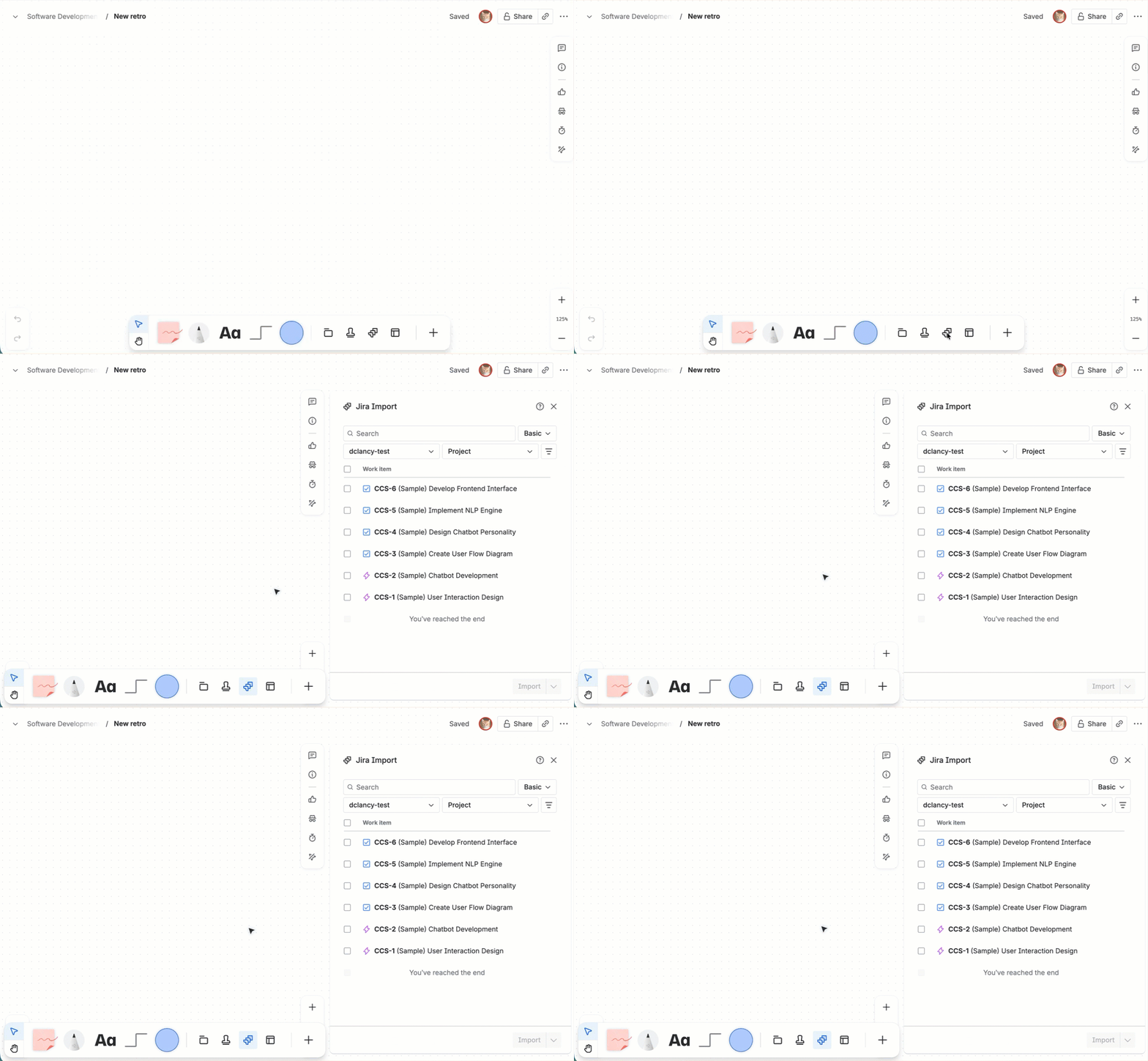
The Jira issue import dialog lets you search for and insert single or multiple Jira work items into your whiteboard. You can use a simple plain text search or more advanced Jira Query Language (JQL) to find work. It works for Jira, Jira App Discovery, and Jira Service Management. Learn more about importing Jira work
ホワイトボードを Jira、Confluence、Trello に埋め込む
ホワイトボードのスマート リンクをプロジェクト ポスター、製品ロードマップ、カンバン ボードなどに埋め込むことで、アイデアの埋め込みやワークフローの視覚化を簡単に実行できます。スマート リンクの詳細
アイデアをホワイトボードから Jira および Confluence に移動する
ホワイトボード全体を他の場所に表示したくない場合は、必要なアイデアや欲しいアイデアを他のアプリに取り込みましょう。ブレーンストーミングやふりかえりの後でも、テキスト、付箋、または図形を Confluence ページや Jira 課題の説明にコピーして物事を進めましょう。ホワイトボードからコンテンツを移動する方法の詳細
ショートカット
ホワイトボードのキーボード ショートカットをショートカット パネルに表示する方法。
右上隅にある疑問符アイコンを選択します。
[キーボード ショートカット] を選択し、すべてのショートカットを表示します。
この内容はお役に立ちましたか?